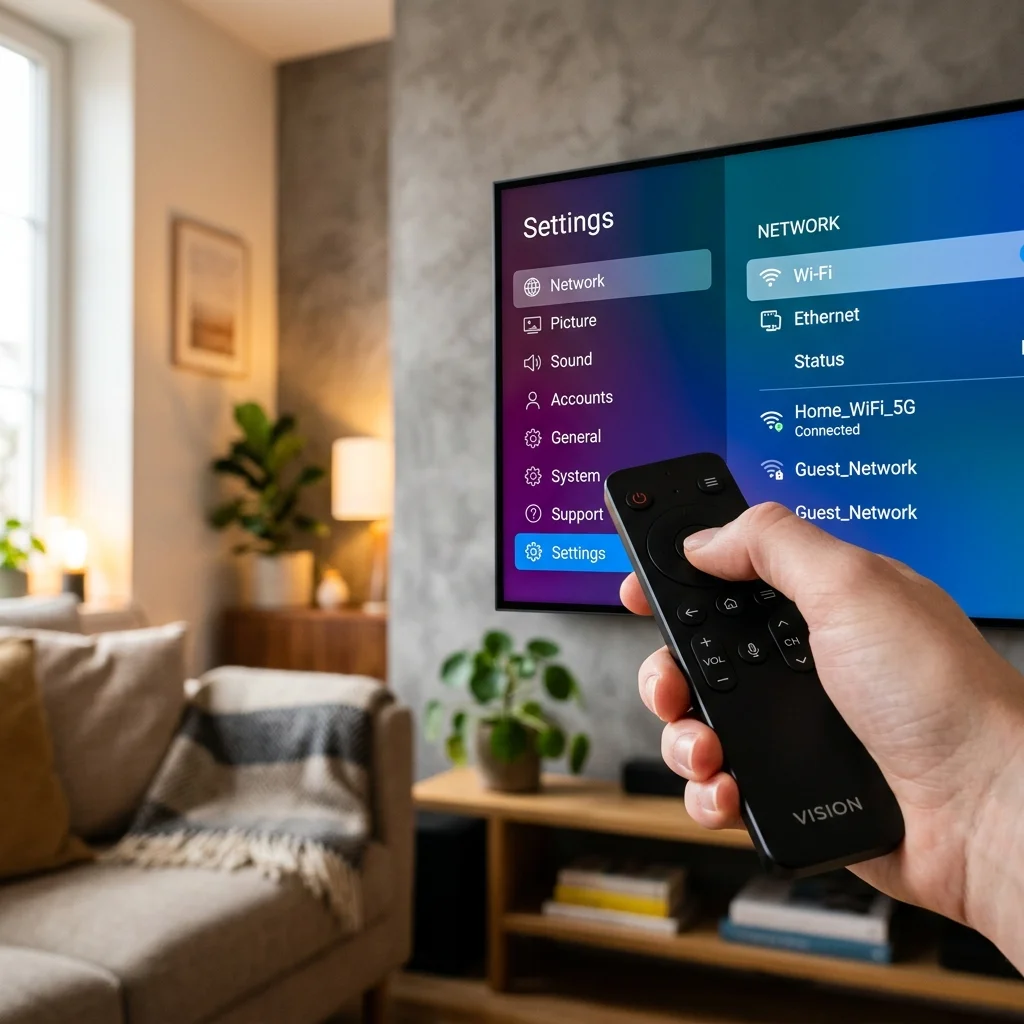
Modern televisions are essentially computers. Operating systems like Android TV, Tizen OS, and WebOS run the apps we use daily, manage Wi-Fi connections, and process sound and audio. And just like computers, Smart TVs suffer from software bugs, slow loading times, network issues, and app crashes.
Before you conclude that your television has a hardware failure or motherboard defect, many of these issues can be fixed right from your couch using just the remote control. In this guide, our engineering team at RR Electronics outlines the most common Smart TV problems and software glitches and provides step-by-step solutions to fix them at home.
1. The TV is Running Extremely Slow or Freezing
As you download apps, browse streaming platforms, and stream high-definition content, your TV accumulates background cache files. Over time, these files clog up the TV's RAM and limited flash memory, causing lagging interfaces and video freezing.
- The Solution (Cold Boot): Do not just turn off the TV using the remote control (this only puts it into standby mode). Instead, perform a hard restart. With the TV turned ON, unplug the power cord directly from the wall socket. Wait for 60 seconds, then plug it back in.
- Alternative Remote Method: On most major Smart TVs, press and hold the power button on the remote control until the screen goes black, turns back off, and the brand logo appears. This forces the OS to clear its temporary RAM.
💡 Technician Tip: Clear the cache of high-use apps like YouTube, Netflix, and Prime Video by going to Settings > Apps > Select App > Clear Cache.
2. Wi-Fi Keeps Disconnecting or Shows “Connected, No Internet”
If your TV drops its Wi-Fi connection, fails to connect, or shows that it's connected but loading screens remain blank, it is usually a minor handshake error between your TV's network card and the router.
- Restart the Router: Unplug your Wi-Fi router for 30 seconds and plug it back in. TVs are notoriously slow at renewing IP addresses.
- Check Date & Time Settings: Secure streaming protocols (SSL) require the TV's system clock to match the actual time. If your TV shows the wrong date or time, streaming apps will refuse to connect. Go to Settings > System > Date & Time > and enable “Automatic Date & Time.”
- Forget and Reconnect: Go to network settings, select your Wi-Fi connection, click “Forget Network,” and re-enter your password.
3. Apps Crash or Fail to Launch
When an app crashes back to the home screen or hangs on a loading screen, it is generally due to a mismatch between the app version and the TV's operating system version.
- Update the App: Go to the TV's official app store, navigate to “My Apps,” and see if there is an update pending for the crashed app.
- Update TV Firmware: Ensure your television's operating system is updated. Go to Settings > Support/System > Software Update > Update Now.
- Reinstall the App: Delete the problematic app completely, restart your TV, and reinstall it from the app store.
4. Audio and Video are Out of Sync
It can be highly frustrating when a speaker's lips do not match the audio coming from your TV speakers or soundbar. This is caused by processing delays in the digital audio signal.
- Actionable Tip: Go to Settings > Sound > Expert Settings (or Digital Audio Out) and look for a setting called “Audio Delay” or “A/V Sync”. Use the slider to offset the audio until it matches the video perfectly.
- Format Settings: If using a soundbar or home theater, switch the TV's audio output format from “PCM” to “Bitstream” or “Auto” in settings to let your external system handle the decoding directly.
Smart TV Troubleshooting Quick Reference Guide
| Problem / Symptom | Primary Cause | Immediate Fix |
|---|---|---|
| Interface Lag / Freeze | RAM overload / Cache buildup | Unplug power cord for 60 seconds (Hard Boot) |
| Wi-Fi Not Connecting | Incorrect system time / IP conflicts | Set Time to Automatic / Reboot router |
| Apps crashing on start | Outdated app / firmware conflict | Update TV software & reinstall the app |
| Lip Sync Issues | Audio signal processing lag | Adjust “A/V Sync” slider in Sound Settings |
When to Seek Professional Repair
If you have performed a factory reset (Settings > System > About > Reset) and the television continues to freeze constantly, shows a loop of the brand logo, or loses Wi-Fi connection even on a wired ethernet cable, the problem is likely not simple software.
It could indicate a failing flash memory chip on the motherboard or a damaged Wi-Fi receiver card. In these cases, attempting to flashing firmware via USB without diagnostic tools can permanently brick the TV.
The expert technicians at RR Electronics can inspect the motherboard, replace damaged Wi-Fi cards, or replace faulty capacitors to restore your Smart TV to perfect working order.